
Excel VBAで二次元配列のクロス結合テーブルを手軽に生成!
データ管理や分析を行う際、異なる要素群の全ての組み合わせを一覧にしたいシチュエーションは多々あります。今回は、Excel VBAマクロを利用して、二次元配列のクロス結合・交差結合・直積結合テーブルを効率よく生成する方法をご紹介します。
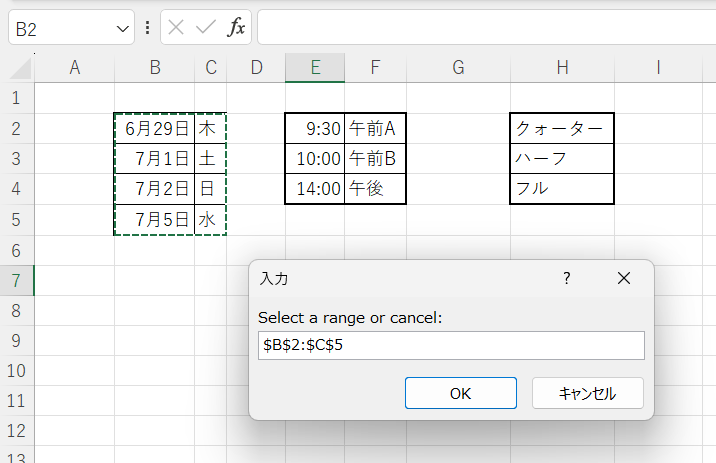
マクロ「CreateCrossJoinTable2D」の概要
「CreateCrossJoinTable2D」は、ユーザー指定の複数の二次元配列(リスト)をクロス結合し、全ての要素の組み合わせを新しいワークシートに一覧出力するExcel VBAマクロです。二次元配列をクロス結合することで、複数の要素群の全組み合わせを柔軟かつ迅速に生成できます。
マクロコードとその登録方法
以下のコードをVBAエディタに挿入し、マクロをExcelに登録します。コードの詳細や登録手順については、続くセクションでご説明します。
Sub CreateCrossJoinTable2D()

    Dim inputRanges As Collection
    Dim ws As Worksheet, newWs As Worksheet
    Dim currentRow As Long
    Dim allCombinations As Collection
    Dim rng As Range
    Dim combination As Variant
    Dim i As Long

    ' Initialize
    Set inputRanges = New Collection
    Set allCombinations = New Collection
    Set ws = ActiveSheet

    ' Input multiple ranges
    Do
        Set rng = Nothing
        On Error Resume Next
        Set rng = Application.InputBox("Select a range or cancel:", Type:=8)
        On Error GoTo 0

        ' Check if Cancel was pressed or no range was selected
        If rng Is Nothing Then
            If inputRanges.Count = 0 Then Exit Sub ' Exit if no ranges have been added
            Exit Do ' Exit loop if at least one range has been added
        End If

        inputRanges.Add rng
    Loop

    ' Add the first range's items as the first combinations
    For i = 1 To inputRanges(1).Rows.Count
        allCombinations.Add inputRanges(1).Rows(i).Value
    Next i

    ' For each additional input range, cross join with existing combinations
    For i = 2 To inputRanges.Count
        Set allCombinations = CrossJoin2D(allCombinations, inputRanges(i))
    Next i

    ' Output results to a new worksheet
    Set newWs = Sheets.Add(After:=Sheets(Sheets.Count))
    newWs.Activate
    currentRow = 1

    For Each combination In allCombinations
        newWs.Cells(currentRow, 1).Resize(, UBound(combination, 2)).Value = combination
        currentRow = currentRow + 1
    Next combination

End Sub

' Function to cross join two sets of combinations
Function CrossJoin2D(existingCombinations As Collection, rng As Range) As Collection

    Dim newCombinations As New Collection
    Dim combination As Variant
    Dim newCombination() As Variant
    Dim r As Long
    Dim i As Long, j As Long, k As Long

    For Each combination In existingCombinations
        For r = 1 To rng.Rows.Count
            ReDim newCombination(1 To 1, 1 To UBound(combination, 2) + rng.Columns.Count)

            ' Existing fields
            For j = 1 To UBound(combination, 2)
                newCombination(1, j) = combination(1, j)
            Next j

            ' New fields
            For k = 1 To rng.Columns.Count
                newCombination(1, j + k - 1) = rng.Cells(r, k).Value
            Next k

            newCombinations.Add newCombination
        Next r
    Next combination

    Set CrossJoin2D = newCombinations

End Function
マクロコードの登録手順は次のとおりです。
- Excelを開き、「開発」タブをクリックします(表示されていない場合は、オプションから設定を変更してください)。
- 「Visual Basic」をクリックします。Alt+F11キーでも開きます。
- エディタ内で、「挿入」→「標準モジュール」を選択し、新しいモジュールを追加します。
- 上記のコードをコピーし、新しいモジュールに貼り付けます。
- エディタを閉じ、Excelに戻ります。
マクロの実行と操作手順
マクロの実行手順と、実行時の操作手順をご紹介します。
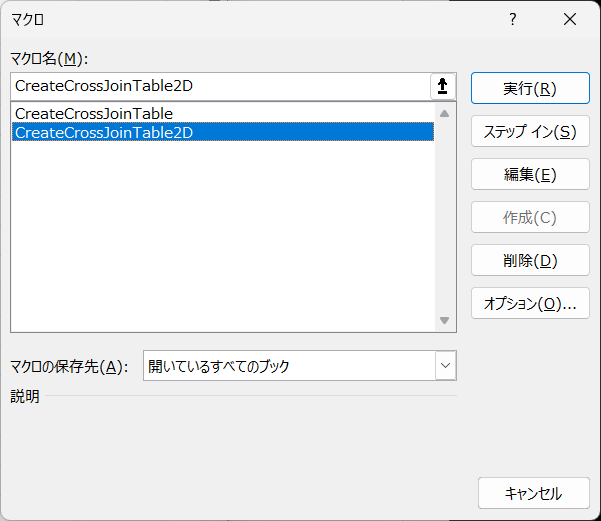
- Excelの「開発」タブから「マクロ」をクリックし、「CreateCrossJoinTable2D」を選択、そして「実行」をクリックします。もしくはAlt+F8キーでマクロリストを開いてから「CreateCrossJoinTable2D」を実行します。
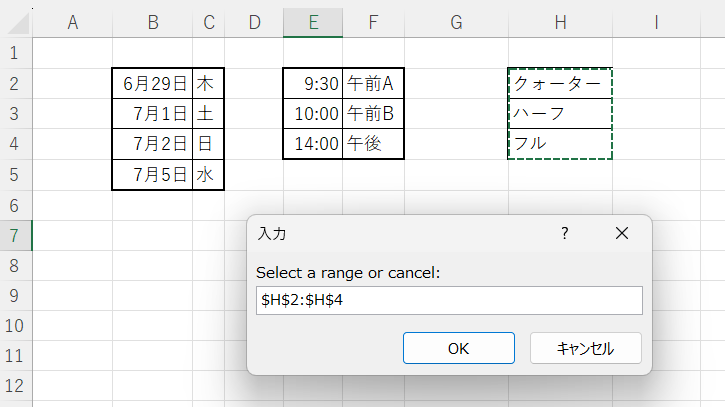
- ポップアップするインプットボックスにて、クロス結合したい二次元配列の範囲を指定します。
- 次の配列範囲を指定します。次々と登録します。
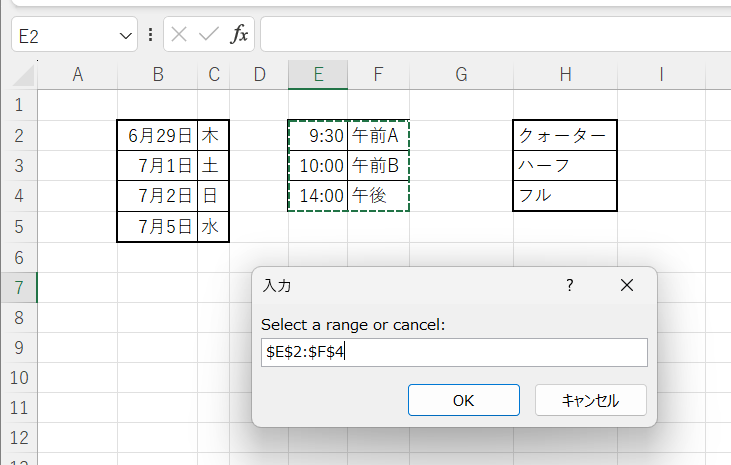
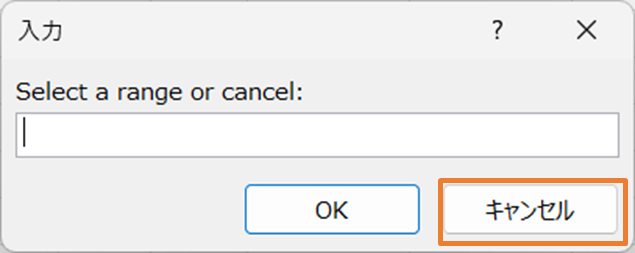
- 全ての配列を指定し終わったら、「キャンセル」をクリックします。
結果の確認方法
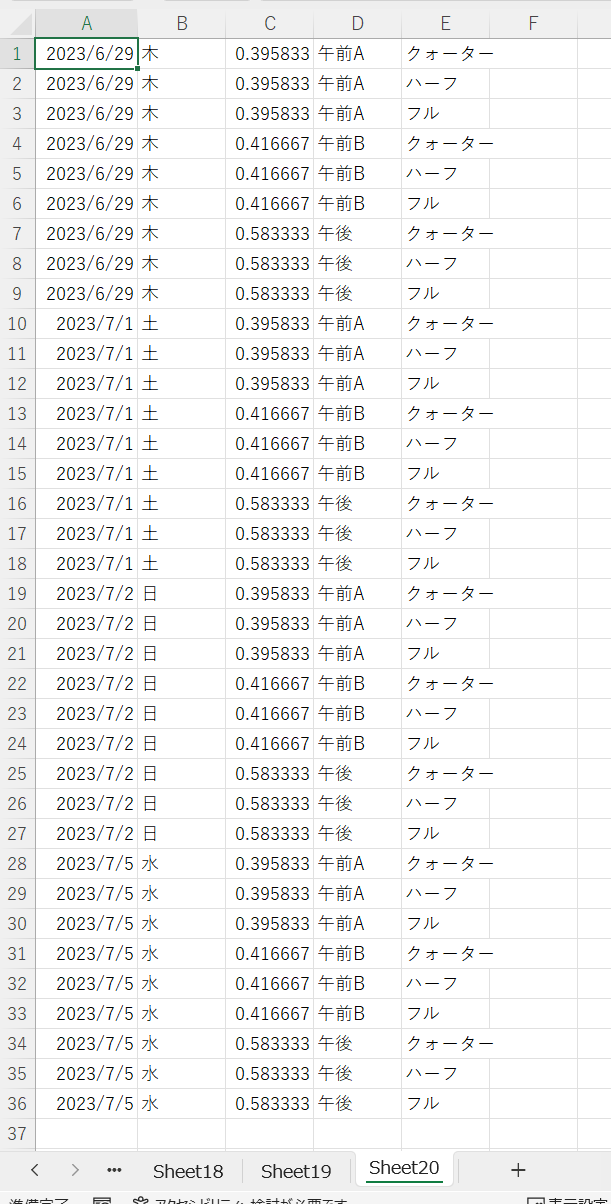
マクロを実行すると、新しいワークシートが生成され、選択した二次元配列の全ての組み合わせが出力されます。各配列の要素が横方向に結合され、全ての可能な組み合わせが縦にリストアップされます。※C列の小数値は表示形式を「時刻」に設定して確認してください。
使用上の注意点
マクロをスムーズに利用するためのいくつかの注意点を挙げておきます。
- 結合セルがあると処理はできあません。
- 同じ列には同じ種類のタイプの値を入れる必要があります。たとえばB列は日付、C列は曜日…などです。
- 大量のデータを扱う場合、処理に時間がかかる可能性があります。適度なデータサイズでの利用を心掛けてください。
- キャンセルボタンは、配列の入力を終了し、テーブルの生成を開始します。誤ってキャンセルを押してしまった場合は、再度マクロを実行してください。
以上で、二次元配列のクロス結合を容易に実現するVBAマクロの説明を終わります。このテクニックを活用して、日々のデータ管理や分析作業を効率化しましょう!
コメント